
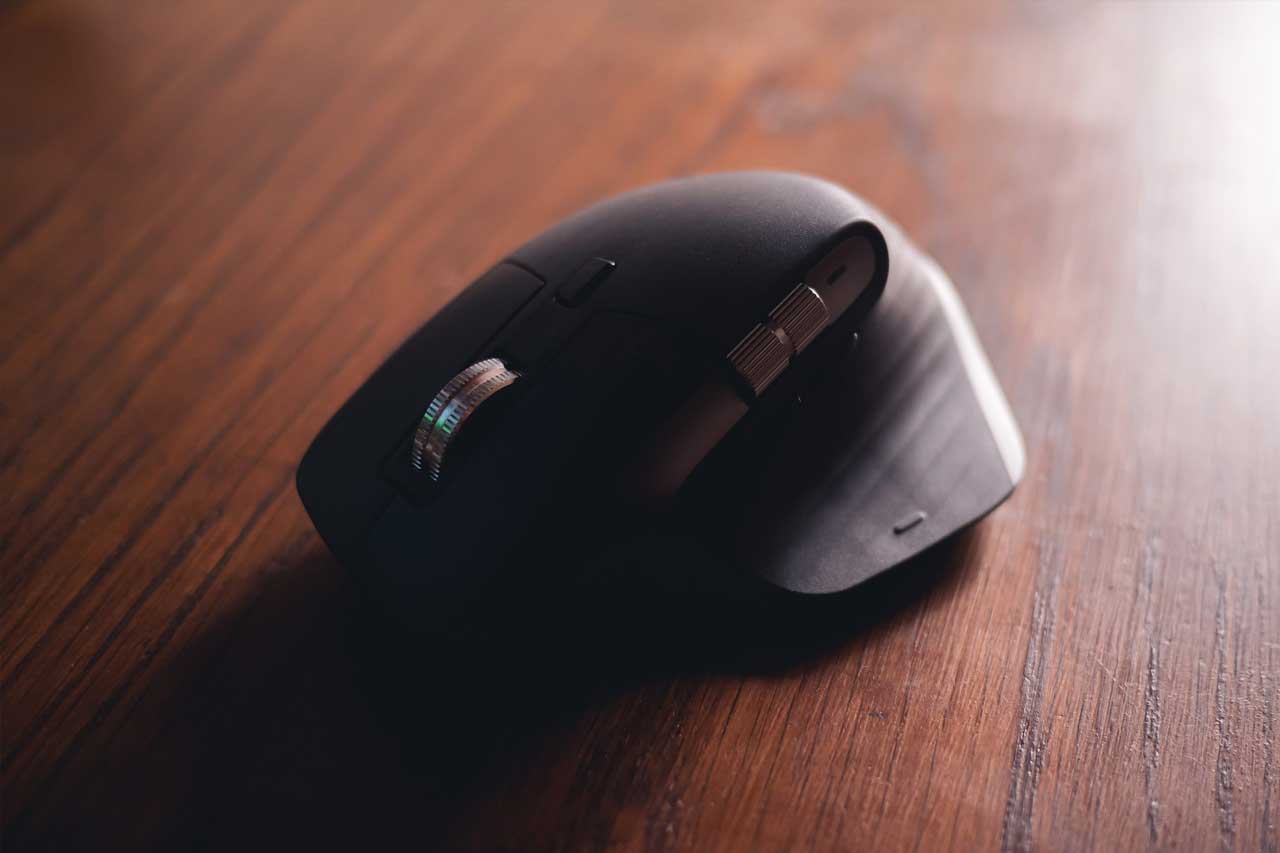
Invented in 1963, the mouse is one of the oldest computer peripherals. Its role is to send commands to the computer. Even today, this external component is still used with both desktop PCs and laptops. Its basic functions have hardly changed, but its design and ergonomics have greatly evolved.
Ease of use, responsiveness, comfort, practicality… various criteria can help you choose the mouse that best suits your needs.
What’s the use: office work or gaming?
The overall aim for any user is to find a mouse that allows you to control the computer with precision. But expectations depend entirely on how you use your computer.
Mouse for gamers
In general, video games require a mouse with:
- very high responsiveness,
- fast execution,
- extreme precision,
- increased sensitivity.
The most important value to watch is the DPI (dot per inch). This corresponds to the number of points detected by the mouse sensor when it moves over a distance of one inch. A high DPI allows you to move the cursor quickly across a very large area of the screen with minimal hand movement.
In all cases, you need to adapt your search criteria to the type of game. For games involving characters with multiple skills, a mouse with several buttons is particularly useful. For shooters such as FPS games, precision and sensitivity are more important than the number of buttons.
Mouse for office tasks
For office work and browsing the Internet, users don’t have any particular technical requirements. However, there’s nothing to stop you investing in a mouse that can improve your performance in everyday tasks.
The key qualities you should look for in a mouse for office PCs are:
- ergonomics,
- comfort of use,
- and ease of use.
A technical feature that’s not so important for gamers becomes key for office mice: the scroll wheel. It should be smooth and jerk-free so you can scroll web pages and Excel sheets with precision.
As a rule of thumb, choose a mouse whose size and design match the shape of your hand. If you are left-handed, it’s better to go for so‑called “ambidextrous” mice. These models are just as ergonomic for left-handers as for right-handers. Mobile users can opt for a thinner and smaller mouse – models that are easy to carry around.
Which technology: optical or laser?
Two technological options are available: a mouse with an optical sensor or a laser sensor.
Optical mouse
With optical technology, a LED projects light onto a surface (mouse pad, table, cover…). The surface then reflects the light back to the sensor, which calculates the trajectory of the mouse and adjusts the movement of the cursor on the screen.
Laser mouse
Laser technology uses a laser beam instead of LED light.
The laser sensor delivers a more accurate trajectory thanks to much sharper images. It is also more responsive than an optical model.
This technology does have a few drawbacks: it only works at its best on a glass surface. In fact, this type of device performs poorly on rough or dusty surfaces. Also bear in mind that frequently lifting and putting down the mouse can disrupt its proper operation.
A mouse with a LED sensor tends to work well on all kinds of surfaces. You can lift and reposition it as often as you like – it won’t affect it.
Wired or wireless mouse?
There are two main types of mouse: the wired mouse and the wireless mouse. The first is connected to the computer with a USB cable or a PS/2 port. The second works using Bluetooth technology or radio waves.
Gamers tend to prefer a wired mouse so they don’t end up with a device that stops working in the middle of a game. Wireless mice are powered by disposable batteries or rechargeable batteries, which means they can run out of power at any time. Note too that wireless mice are generally less responsive. They’re also heavier, which makes them harder to handle.
If you are a gamer and still want to use a wireless mouse, choose a model with longer battery life. Also avoid mice that use radio waves, as these can interfere with your game.
Wireless mice are more suitable for office use. They are less cluttered and reduce the number of cables covering your desk. This type of product is also easier to carry in your laptop bag.
Two buttons or more than two?
Nowadays, you can find mice with extra, programmable buttons. These let you access additional features. For gamers, this type of mouse can be used in a similar way to a game controller. Some buttons also work as keyboard shortcuts.
Mice with several buttons come with software to install on your PC. This driver allows you to assign specific commands to each button.
Hand position on the mouse: fingertip, palm grip or claw grip?
The way you hold your mouse is very important when you’re using it for long periods. Your movements can cause muscle or joint strain in different parts of your hand. Fortunately, there are models that allow you to adopt the position that works best for you.
Fingertip grip: only your fingertips rest on the mouse. Your fingers handle all movements (button clicks and moving the mouse). This position offers greater responsiveness, as you can move the mouse quickly in any direction. However, fingertip grip can be tiring when you make large, fast movements.
Claw grip: your fingers are arched over the buttons and your palm barely touches the body of the mouse. This position provides more precise movements and a lighter touch, but if you use the mouse for long hours it can create tension in your forearm.
Palm grip: your whole palm rests on the mouse with your fingers extended over the buttons. Here, it’s your palm that moves the mouse. This is the most comfortable position.
