
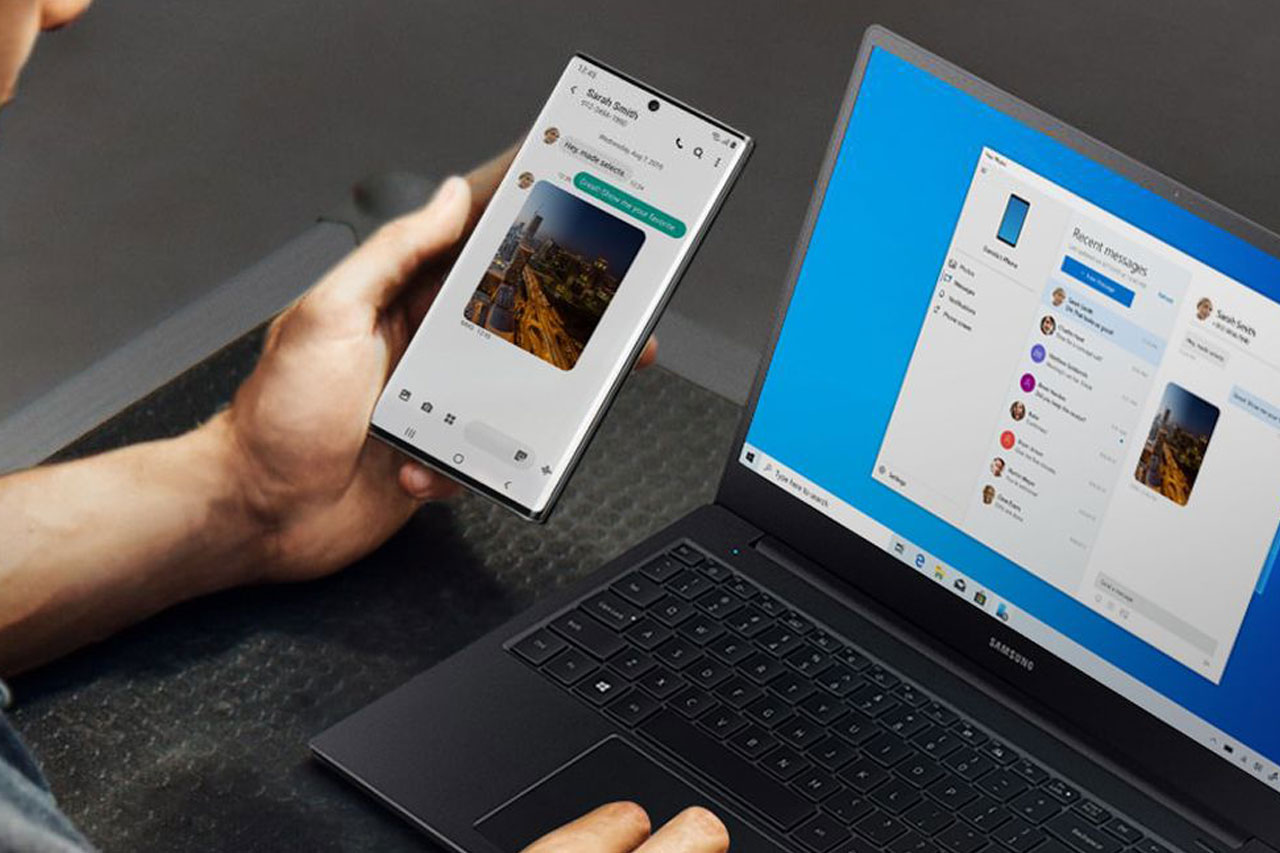
Linking your smartphone to your PC is now possible. The latest Windows 10 update has introduced new features that allow you to synchronise these two devices. Syncing the two devices speeds up the transfer of media content, emails and SMS.
Requirements
Synchronisation lets you continue on your computer reading a web page opened on your phone, carry on writing your emails or text messages, and access your photos, videos and music directly.
Here are the conditions required to sync your smartphone with your computer:
- The latest version of Windows 10 must be installed on your computer.
- You must also have a Microsoft account. This is usually the email address and password you use with Outlook, Hotmail, OneDrive, Skype, Xbox or Windows.
On your computer
Now let’s move on to the steps to link the devices, starting with what you need to do on your computer. The steps are as follows:
- Press the Windows key on your keyboard or click the Windows icon at the bottom left of the screen.
- Then click the cogwheel icon to open Windows settings.
- Next, you will see the Phone option. Click it.
- In the Your phone section, click Add a phone.
- A new window will then appear on your screen. Enter your phone number in the box and make sure the dialling code matches your country.
- To continue, click Send.
On the smartphone
After completing these different steps on your computer, it’s time to move on to your smartphone. The steps are as follows:
- Because you entered your phone number, you will receive a confirmation SMS. This message comes from Microsoft. It contains a link that lets you continue the synchronisation. Tap the link to follow it.
- The link takes you to the Microsoft Launcher app page.
- Tap Install. If everything goes smoothly, the download and installation will complete in a few seconds.
- Launch Microsoft Launcher.
- After the app starts, the home screen appears.
- The next step is to sign in to finish linking the devices.
- Enter your username, that is, the email address linked to your Microsoft account.
- Tap Sign in with Microsoft.
- Type the password for your Microsoft account.
- Tap Sign in to complete the connection.
Your smartphone is now synced with your computer. The page that appears will show you what you can do once the link is established. The Microsoft Launcher app will ask for access to your photos, media and other files on your smartphone.
The app may also ask for your location in order to locate you. After all these steps, you will reach the All set page. All you need to do is tap at the bottom of the screen on Let’s go to start Microsoft Launcher. Microsoft Launcher can also personalise your computer using data from your smartphone.
