
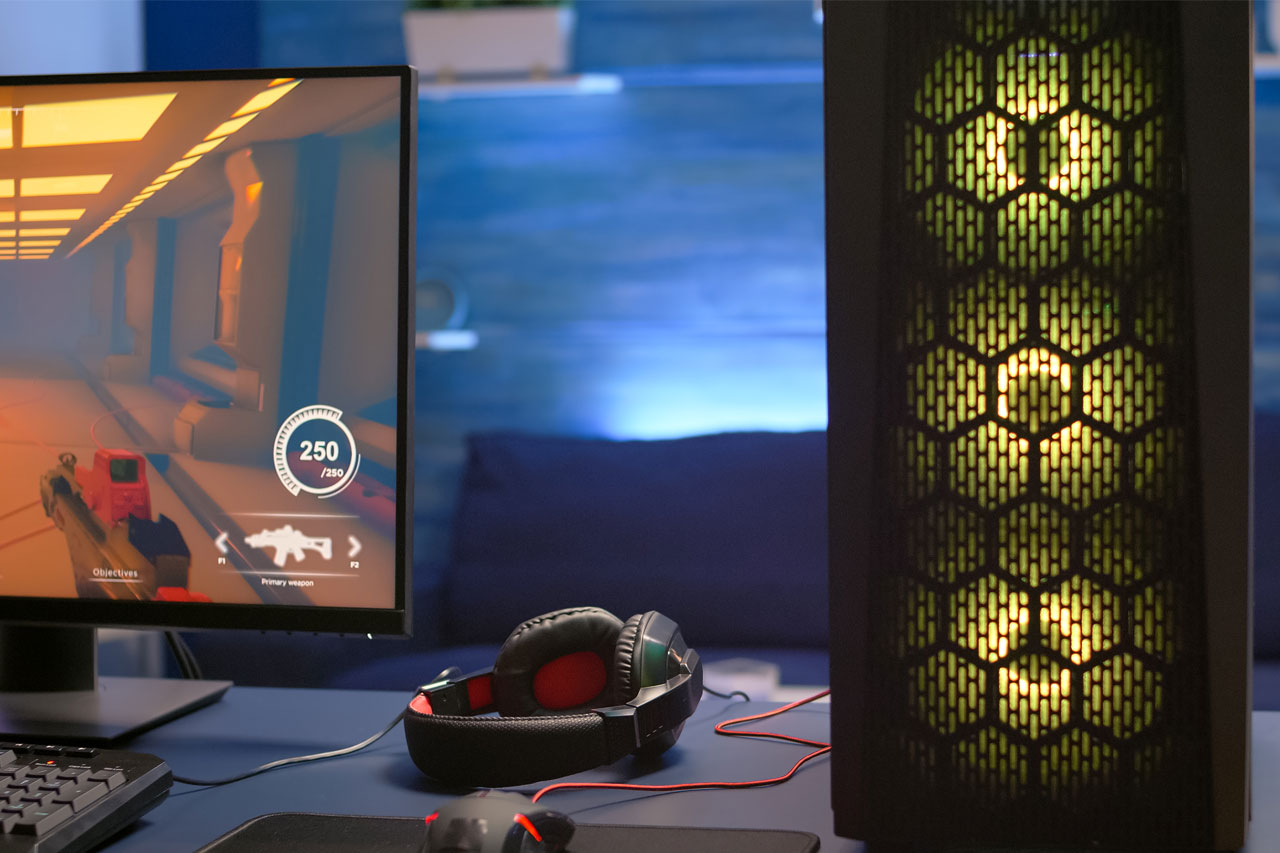
A computer is generally associated with professional use. However, many people also use it for entertainment, especially for video games. But for this kind of activity, you will need a specific PC. To run the latest triple‑A titles, your machine needs to be sufficiently powerful. Its system has to be consistent with the game you install.
Updating and overclocking the graphics card
Updating the drivers
When it comes to gaming, the graphics card is a key component. But this part won’t be able to do its job properly if your computer doesn’t have the latest drivers. Updating your drivers helps boost the speed of your computer. You can squeeze out a few extra FPS simply by keeping your drivers up to date.
Be careful! Avoid installing so‑called “Beta” drivers. These are still being tested and you may experience more or less serious bugs during your gaming sessions. Always make sure that the version of your drivers is stable before installing them.
To find out which graphics card is in your computer, follow these steps:
- Open the Control Panel on the computer, then go to Hardware and Sound
- Then click on the Device Manager
- Choose the graphics card from the list of devices displayed
Overclocking: a risky technique
The smoothness of a game depends on the power of the graphics card (processor, memory). For extra performance, you can try overclocking. This method involves running your graphics card at a higher frequency using dedicated software.
In the past, this used to carry a high risk of overheating. These days, however, graphics cards are much better equipped and include systems to prevent damage. Nevertheless, you should avoid increasing the frequency by more than 10 to 15%. In practice, this will significantly increase the speed of your computer. However, it will have an impact on the long‑term lifespan of the overclocked component.
Close background programmes
Remember that the programmes installed on your computer have an impact on your games. Some applications and programmes run background tasks even when they are not actively in use. These background activities slow down your computer because they consume system resources.
AVG is an application that makes it easier to uninstall programmes you don’t use. It’s a particularly smart tool, with the ability to filter out programmes that have not been used for a certain period. You can also use the “gaming” mode available in Windows 10.
You can also use the well‑known Task Manager (Ctrl+Alt+Del) to stop software running in the background. Be careful not to stop a critical operating system process, as this could shut down your computer.
Disable the SuperFetch and Prefetch services
These services are designed to improve Windows start‑up times and the launch of other applications. However, using them can actually increase game loading times.
Here are the steps to disable these services on your computer:
- Open the Control Panel, then go to System and Security
- Then select Administrative Tools and Services
- Scroll down to the SuperFetch entry
- Double‑click it and choose Disable from the list.
- Click OK and close all the windows
- Open the registry by clicking the Start button and typing regedit.
- Press Enter
- Double‑click on UnablePrefetcher and enter 0 to disable the Prefetcher function.
It is also advisable to defragment the hard drive, as it accumulates written and deleted data. To do this, you need to:
- Go to the Start menu, then All Programmes, Accessories, System Tools and Disk Defragmenter
- Select your Windows drive and click on Defragment disk. If you have an SSD, you should not defragment it. It’s better to use the TRIM command to optimise it.
- On Windows 8, the TRIM command is integrated into Disk Defragmenter, so you just need to click Optimise. On other versions of Windows, you should run the TRIM command regularly.
