
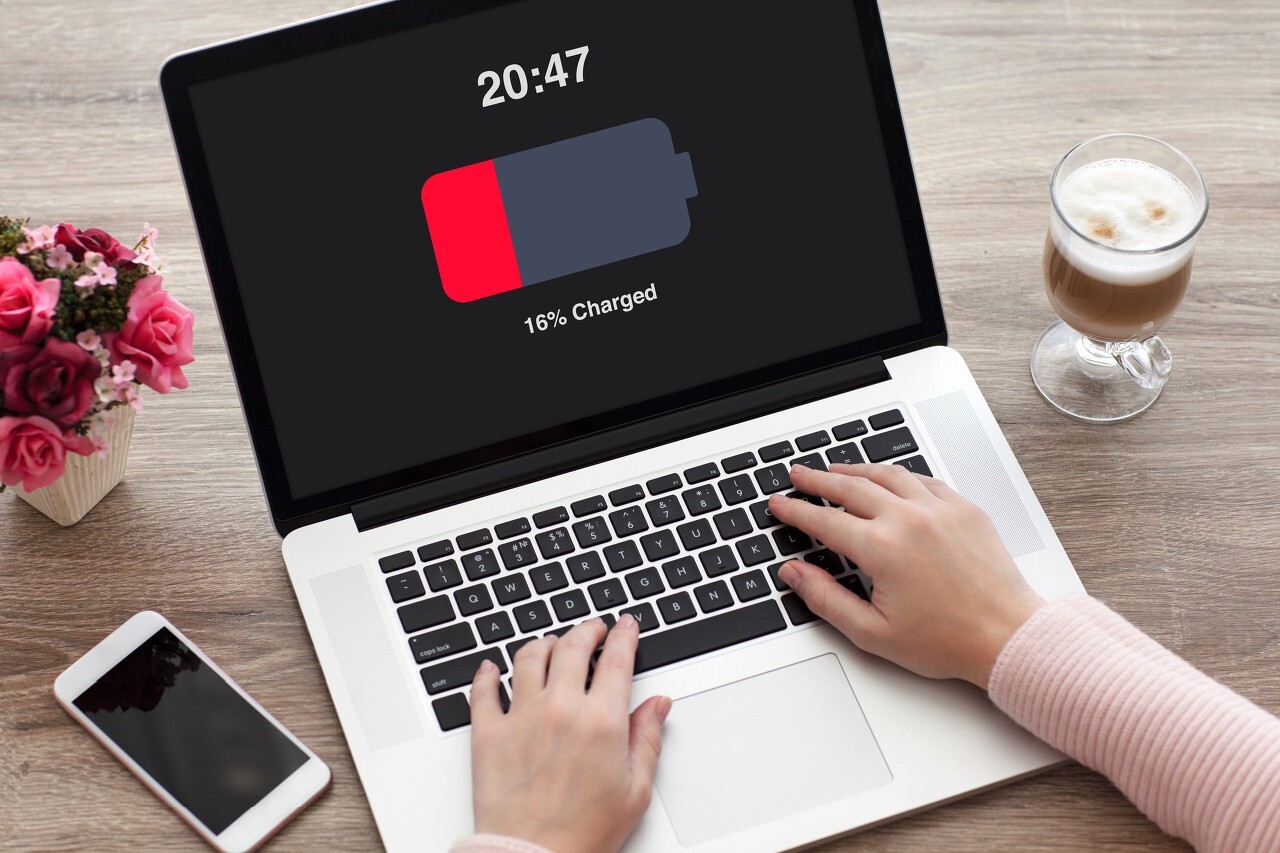
Si vous possédez un ordinateur portable, vous devez look after the battery to stop it failing before its time. All laptops are fitted with a battery. Some come with a removable battery, others with a fixed, non‑removable battery. Either way, your laptop draws its power from the battery whenever it’s not plugged into a mains socket.
Laptop batteries don’t last forever. Research shows that most of them have a lifespan of two to five years. After five years, most will no longer hold a charge. You might still be able to use your laptop, but you’ll have to keep it plugged into the wall. Instead of waiting for the battery to fail, you should follow the tips below to maintain it properly.
Don’t run it flat
Try not to completely drain your laptop battery. Laptops use lithium‑ion (Li‑ion) batteries. When they are fully discharged, Li‑ion batteries start to degrade. Constantly running the battery flat over several months can seriously damage your laptop battery. You can extend its lifespan by keeping at least a small amount of charge in it. Even if it’s only 10%, that small charge will help protect the battery from early failure.
Don’t charge it to 100%
Another useful maintenance tip is to avoid charging your laptop battery to full. In other words, don’t always charge it to 100%. So what’s wrong with charging the battery right up to 100%? Charging it completely will shorten its lifespan. Li‑ion batteries work best when they are charged to just below their maximum capacity. Instead of charging the battery to 100%, try stopping the charge at around 80 or 90%.
Keep it cool
You should keep your laptop battery cool. Laptop batteries can overheat. During use, they naturally generate heat. If that heat gets trapped and can’t escape, the battery may become hot enough to fail. You can protect your laptop battery from premature failure by keeping it cool. Make sure there’s nothing blocking the airflow around it. If possible, use your laptop in an open space where air can reach the battery.
Install battery management software
There is software that can help you manage your laptop battery. Known as battery management software, it comes pre‑installed on many laptops. You can use it to check the health of your laptop battery and to fix common problems. If the battery starts to weaken, the software can give you tips on how to extend its life.
Optimise battery usage and performance management settings
Fortunately, your laptop has settings that let you optimise battery life. So if your battery seems to be draining too quickly, try this step first: type “battery” into the Windows search bar in the bottom left‑hand corner of your screen. In the window that opens you can turn on “battery saver” options and see other settings that may improve performance.
Another quick tip: lower your screen brightness. Your keyboard probably has a function key with a sun or similar icon. Press that key and use the arrow keys to turn the brightness down. You can also get to this setting by searching for “display brightness levels” in the Windows search bar.
Identify and then close any apps that are heavy on resources
Have you ever walked out of a meeting room and forgotten to switch the lights off? Some meeting rooms have motion sensors that control the lighting so it’s only on when people are in the room. This helps cut energy use; in the same way, closing down power‑hungry apps helps your battery last longer.
Save your battery by closing apps after use
Not sure which apps are draining your battery faster than others? Type “battery usage” into the Windows search bar. Look at the “Battery usage by app” section to see which apps are using the most power. For example, you might see that Google Chrome is using 45% of your battery, Microsoft Excel 21% and Microsoft Word 9%. Close the apps that consume the most power; in this example, you should close Google Chrome. Another easy trick is to put your laptop into aeroplane mode to reduce battery usage.
